Usage
Once a connector is configured, there is nothing to do: work packages and tasks follow each other. This page explains what is copied, when, and what happens when both sides change.
What is synchronized
| OpenProject work package | Odoo task | Notes |
|---|---|---|
| Subject | Name | |
| Description (Markdown) | Description | OpenProject renders the Markdown; Odoo's text is converted to Markdown on the way back. Headings, bold, italic, links, lists, check lists, code, quotes and tables survive the round trip |
| Type | Tag | a tag with the name of the type is reused, otherwise created |
| Status named like a stage | Stage | with Statuses as Stages; see Configuration |
| Assignee | Assignees | matched on the users' OpenProject Login, then e-mail address |
| Finish date | Deadline | a date in OpenProject, the same day in Odoo |
| Open / closed status | Done / not done | a closed status → Done (and optionally archived); reopened → In progress; a task set to Done or Cancelled gets a closed status |
| Comments | Log notes in the chatter | see Comments |
| Images and files in the description and comments | Attachments of the task | downloaded once, shown inline |
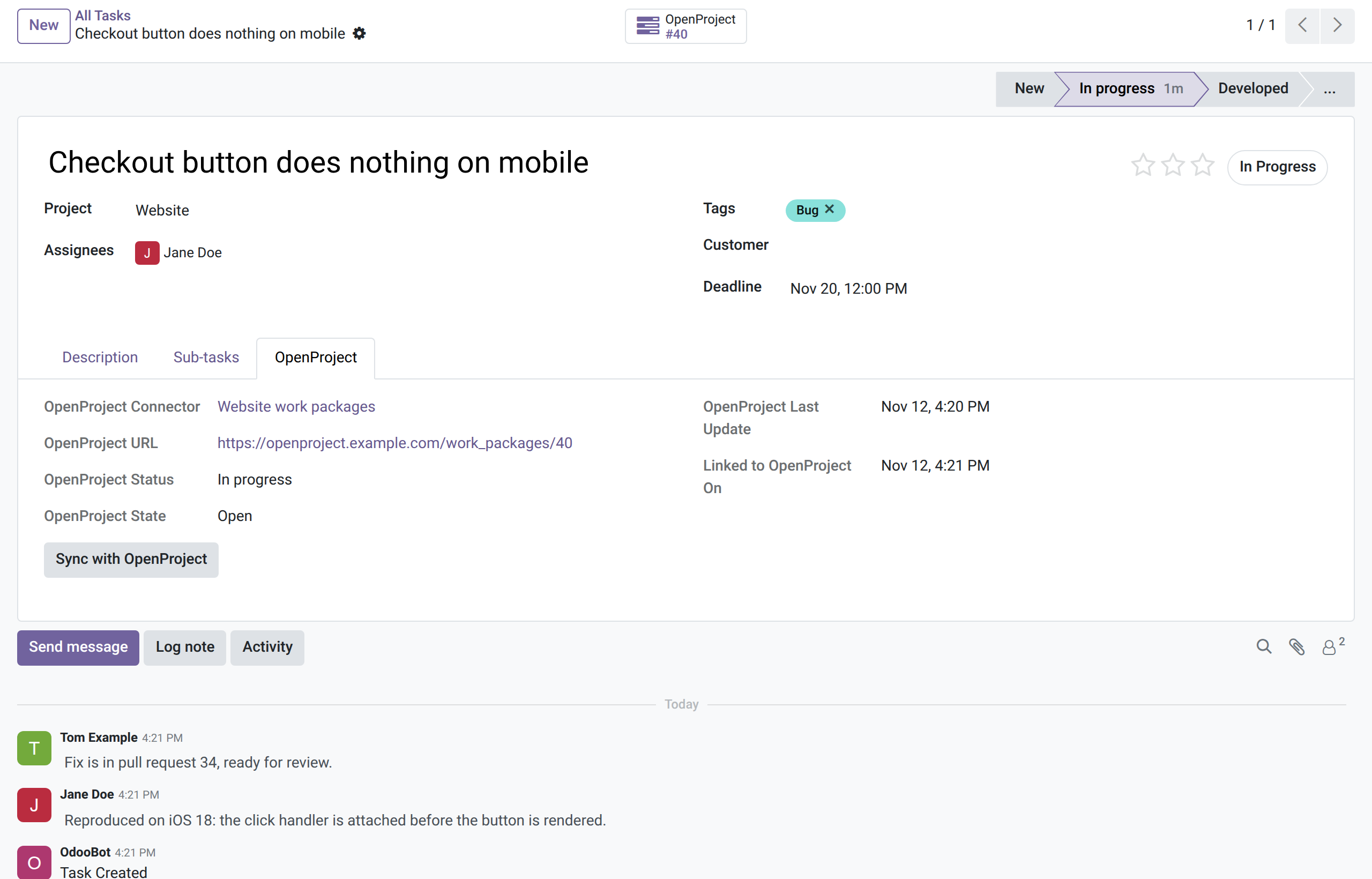
| Web address | OpenProject button and tab on the task |
Not synchronized: time entries, versions, start dates, estimates and progress, relations between work packages, the parent and children of a work package, custom fields, and edits or deletions of comments that were already copied.
A synchronized task has an OpenProject button that opens the work package and an OpenProject tab:
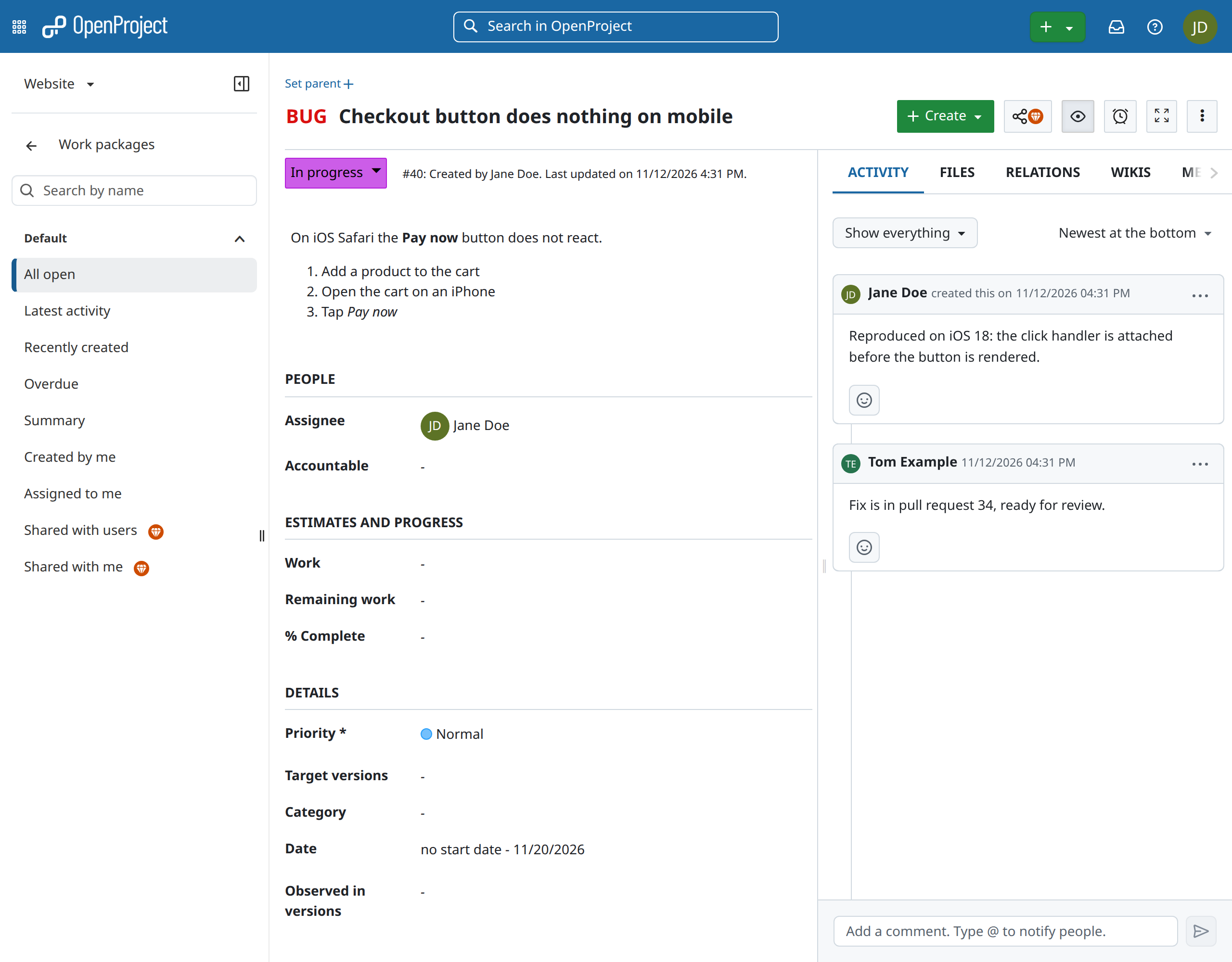
The same work package in OpenProject, with the same two comments:
When
| Trigger | What runs |
|---|---|
| scheduled action OpenProject: Sync Work Packages (every 5 minutes) | each automatic connector whose interval has passed: import, then export |
| Sync Now on the connector | the same, immediately; a notification shows the result |
| Sync with OpenProject on the OpenProject tab of a task | that one task: read its work package, send its changes, or create its work package |
| OpenProject webhook | the one work package that changed |
A run handles at most 100 work packages, 50 tasks and 100 comments; the next run continues where it stopped. While one run of a connector is busy, another one for the same connector waits for the next turn.
Webhook delay
OpenProject combines the changes of one user to one work package within a few minutes into a single entry (Administration → Users and permissions → Settings → Journal aggregation time, five minutes by default), and sends the webhook when the entry is complete. A change in OpenProject therefore reaches Odoo after that time at the latest, not at the same second.
Who wins when both sides change
Odoo remembers which fields of a task were changed in Odoo since the last sync (Changes to Send to OpenProject on the OpenProject tab). A sync first imports, then exports:
- Fields changed in Odoo are not overwritten by the import, and are then sent to OpenProject. Odoo wins for those fields.
- All other fields take the values from OpenProject. OpenProject wins for the rest.
Example: in Odoo someone renames the task, while in OpenProject someone edits the description. After the next sync both sides have the new name from Odoo and the new description from OpenProject.
When someone else changed the work package between Odoo reading and writing it, OpenProject refuses the write (409 Conflict). Odoo reads the work package again and retries once.
Imports never count as changes, so a task does not bounce back and forth between Odoo and OpenProject.
New work packages and new tasks
- OpenProject → Odoo: every open work package becomes a task of the connector's project (with Only Types, only work packages of those types). Closed work packages are skipped unless Import Closed Work Packages is on.
- Odoo → OpenProject: every task created in the connector's project after Export Records Created After becomes a work package, with its description, assignee, deadline and the type from its tags or Type for New Work Packages. The discussion in the chatter from before the work package existed stays in Odoo.
- A duplicated task is a new task: it gets its own work package.
Comments
| From | To | How |
|---|---|---|
| OpenProject comment | log note in the chatter | posted as the Odoo user with that OpenProject Login, otherwise by OdooBot with the OpenProject name on top. Log notes are not e-mailed to followers |
| Odoo message (Send message) | OpenProject comment | starts with "Name in Odoo:", followed by the text and the attachments |
| Odoo log note (Log note) | stays in Odoo | an OpenProject comment is visible to everyone who can see the work package, so internal remarks are never sent |
OpenProject's own change entries (Status changed from New to In progress) are not copied. In Odoo, the field changes made by a sync show in the chatter like any other change.
Messages to customers
A message sent from the chatter of a task with a customer as follower goes to OpenProject as a comment that everyone with access to the work package reads. Use Log note for what should stay internal.
Images
- An image or file in a work package or comment is downloaded and stored as an attachment of the task, and shown where it was in the text. Each file is downloaded once.
- An image in the task description, or an image or file attached to a chatter message, is uploaded to the work package and linked in the description or comment. A new work package is created first, then its images are uploaded.
Closing and reopening
| Event | Result |
|---|---|
| work package gets a closed status (Closed, Rejected) | task set to Done; with Mark as done and archive also archived |
| work package gets an open status again | task set to In progress and unarchived |
| task set to Done or Cancelled in Odoo | work package gets the status Closed, or another closed status |
| task set back to an open state in Odoo | work package gets the default status |
Restart Import
The connector remembers up to which update time it has imported (Imported Up To). After changing Only Types or Import Closed Work Packages, click Restart Import to look at every work package again. Existing tasks are updated, not duplicated.
Find the synchronized tasks
On the task list or kanban, the filters Linked to OpenProject and Changes Not Sent to OpenProject are under Filters, and searching for a number in OpenProject Work Package finds the task of work package #40.