Configuration
Four steps: create an API token in OpenProject, add a connector in Odoo, enter the OpenProject logins of your users, and (optionally) add a webhook in OpenProject.
One OpenProject project, one Odoo project
A connector links one OpenProject project to one Odoo project. Nothing else is synchronized:
- the other projects of your OpenProject are not read;
- the tasks of your other Odoo projects never become work packages;
- within the linked OpenProject project, Only Types can narrow the import down to some work packages.
The OpenProject Project of the connector is the identifier of the project: the part of its address after
/projects/. For https://openproject.example.com/projects/website that is website. You may also enter the numeric
ID of the project.
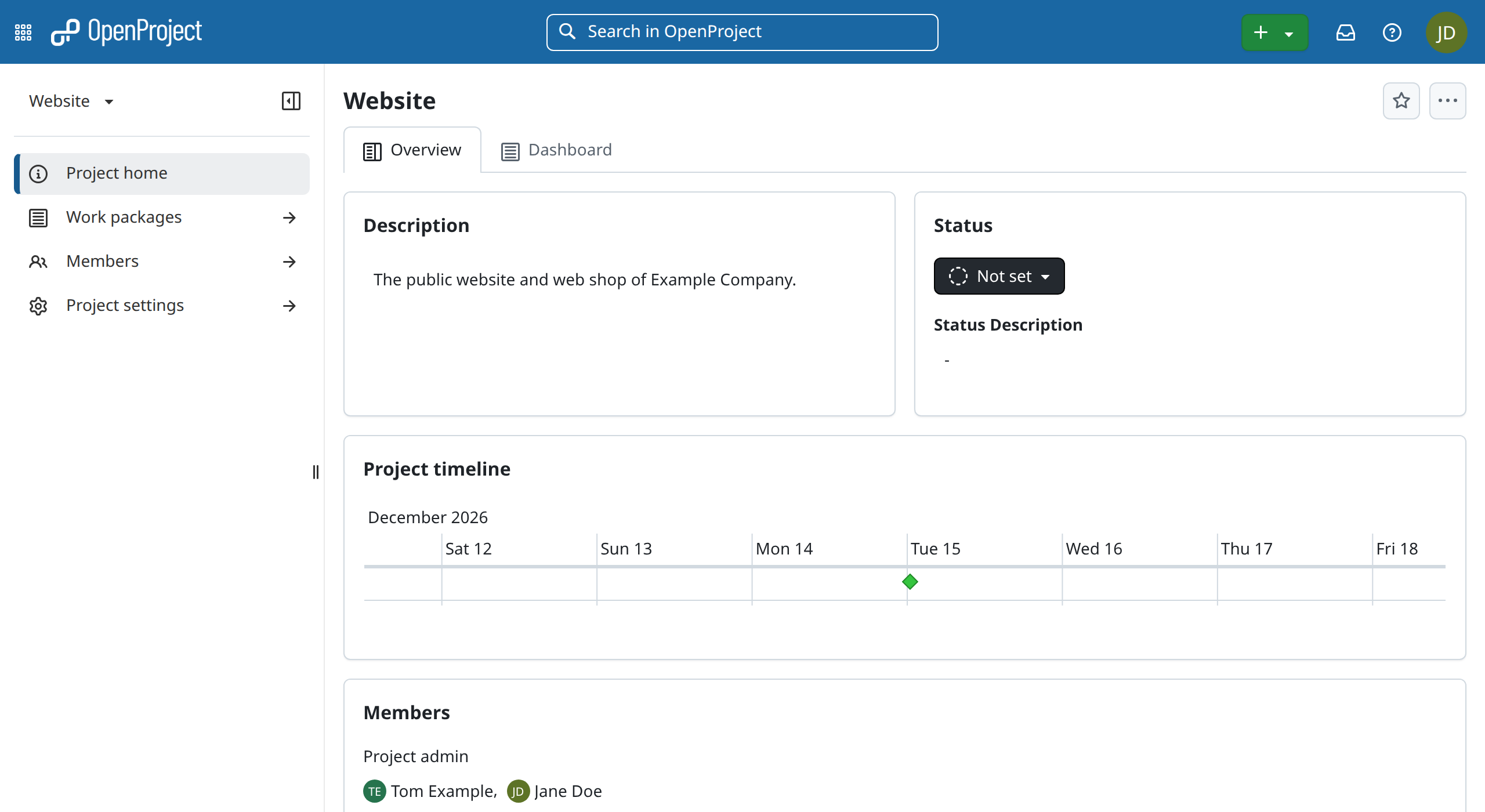
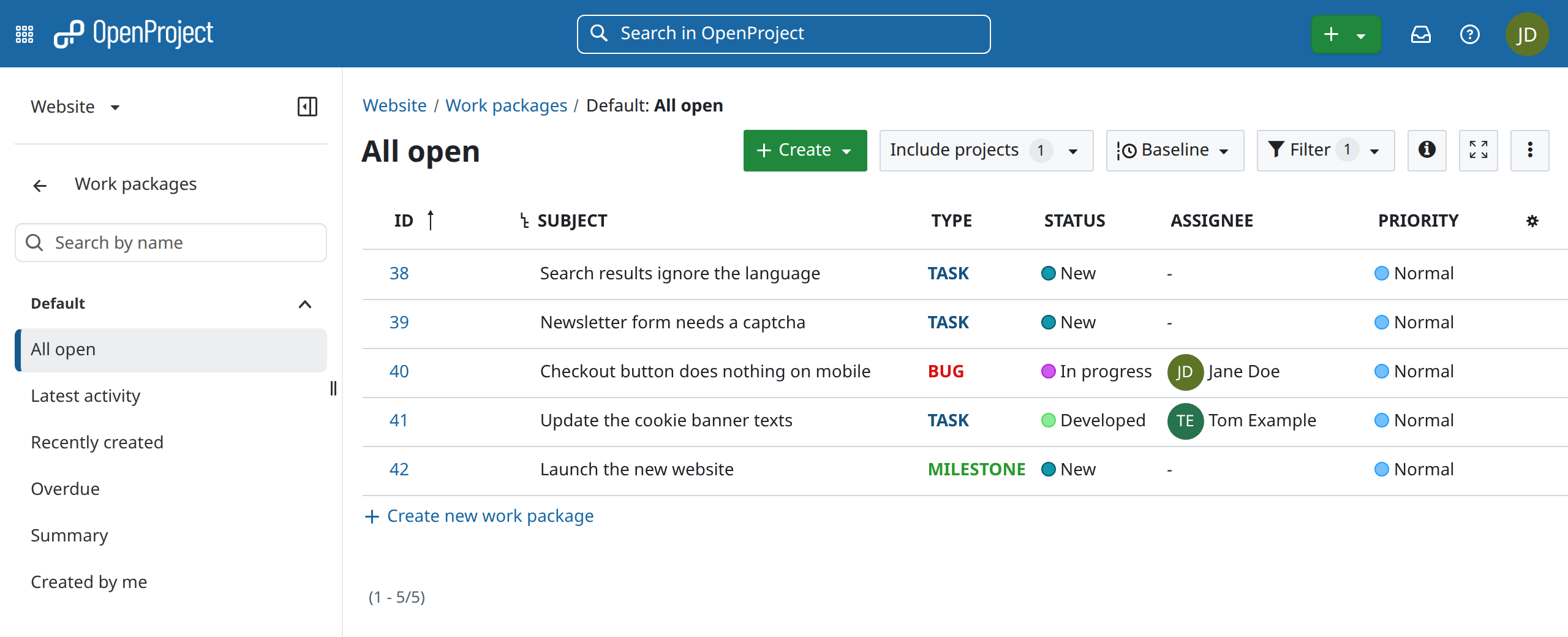
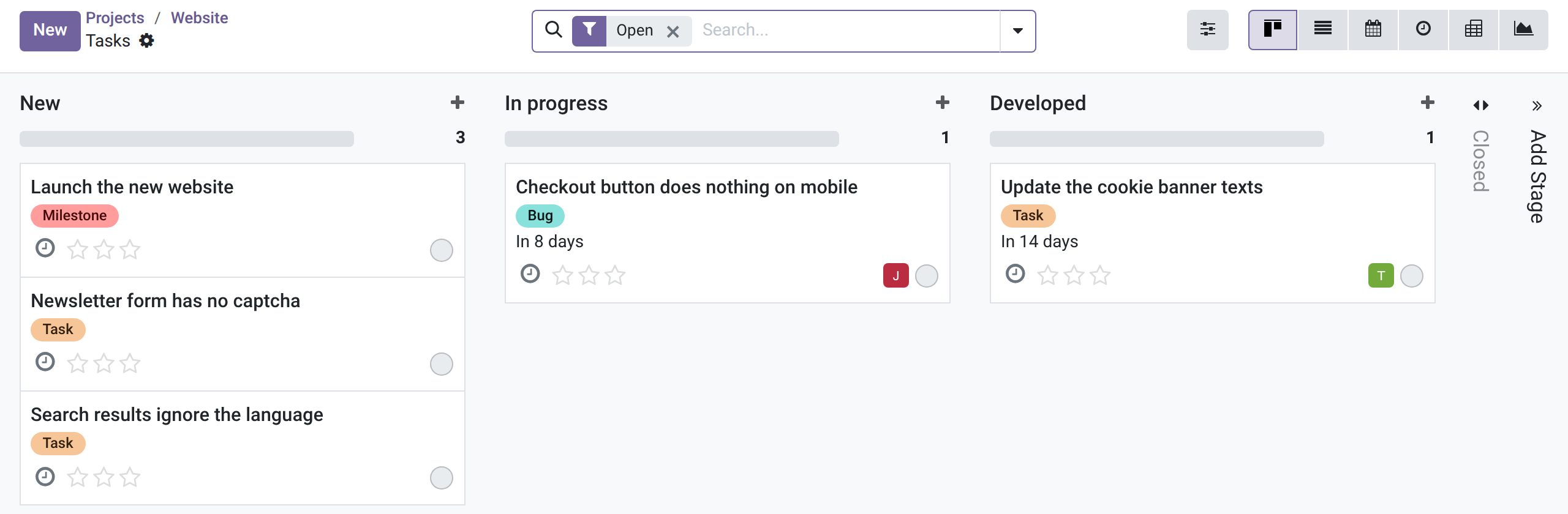
These are the work packages of that project. After the first sync they are the tasks of the Odoo project Website, with their type as tag and their status as stage:
1. Create an API token in OpenProject
Odoo uses one token for all its requests. Every work package and comment created from Odoo shows the owner of that token as its author; the name of the Odoo user is at the top of each comment.
- Sign in to OpenProject as the user that Odoo should act as. A user made for this (Odoo) keeps the changes of Odoo apart from those of people; a normal user works as well.
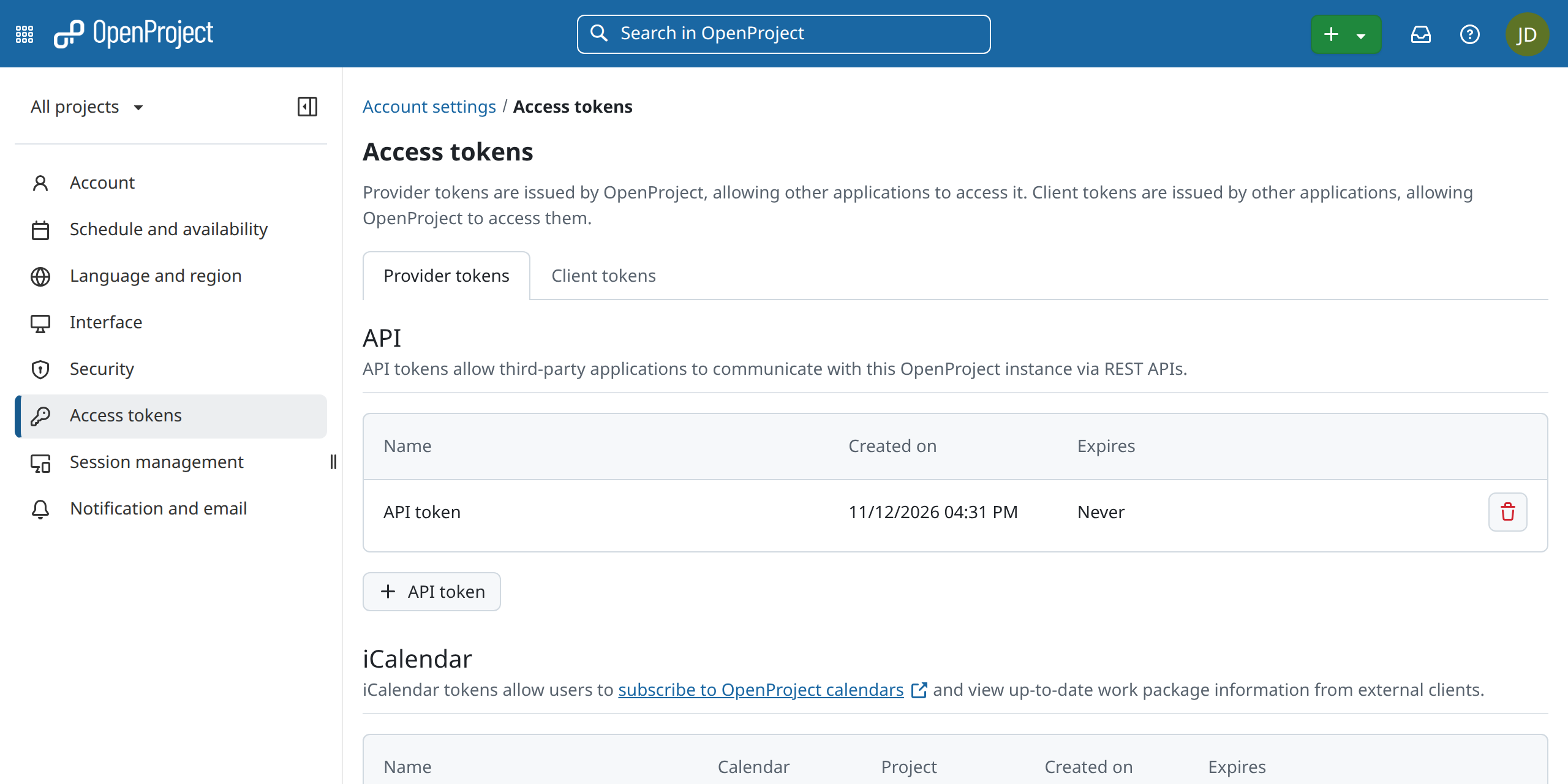
- Open Account settings → Access tokens, and under API click + API token.
- Copy the token. OpenProject shows it only once.
The user of the token must be a member of the OpenProject project with a role that may view and edit work packages, add comments and view members (for example Project admin, Member). Odoo can only see and change what that user can see and change. OpenProject also needs the API enabled: Administration → API and webhooks → API (it is on by default).
2. Add a connector in Odoo
- Project → Configuration → OpenProject Connectors → New. Only administrators (Settings access) see this menu, because the connector holds the token.
-
Fill in:
Field Value Name anything, e.g. Website work packagesOpenProject URL https://example.openproject.com, or the address of your own OpenProjectOpenProject Project the identifier of the project as in its URL, e.g. website. You may paste the whole URL of the project or of a work package list: Odoo splits it into URL and identifierAPI Token the token from step 1 Synchronize With Project Tasks Project the Odoo project whose tasks are synchronized Direction OpenProject to Odoo, Odoo to OpenProject or Both directions Automatic / Every (Minutes) sync on a schedule, every 15 minutes by default (at least 5). Off: only with Sync Now and the webhook Statuses as Stages a status named like a stage of the project sets the stage, and moving the task sets that status Comments copy OpenProject comments to the chatter and sent chatter messages to OpenProject comments For OpenProject to Odoo:
Field Value Only Types e.g. Bug, Task: only work packages of these types become tasks. Empty: every work packageImport Closed Work Packages also create tasks for work packages that are already closed. Off: closed work packages are only followed once they have a task Closed Work Packages Mark as done, or Mark as done and archive For Odoo to OpenProject:
Field Value Type for New Work Packages e.g. Task: the type of work packages created from a task. Empty: the default type of the project. A tag named like a type overrides itExport Records Created After only tasks created after this moment become work packages. It is set to the creation of the connector, so connecting an existing project does not flood OpenProject with old tasks. Clear it or set an earlier date to export older tasks A filled-in connector:
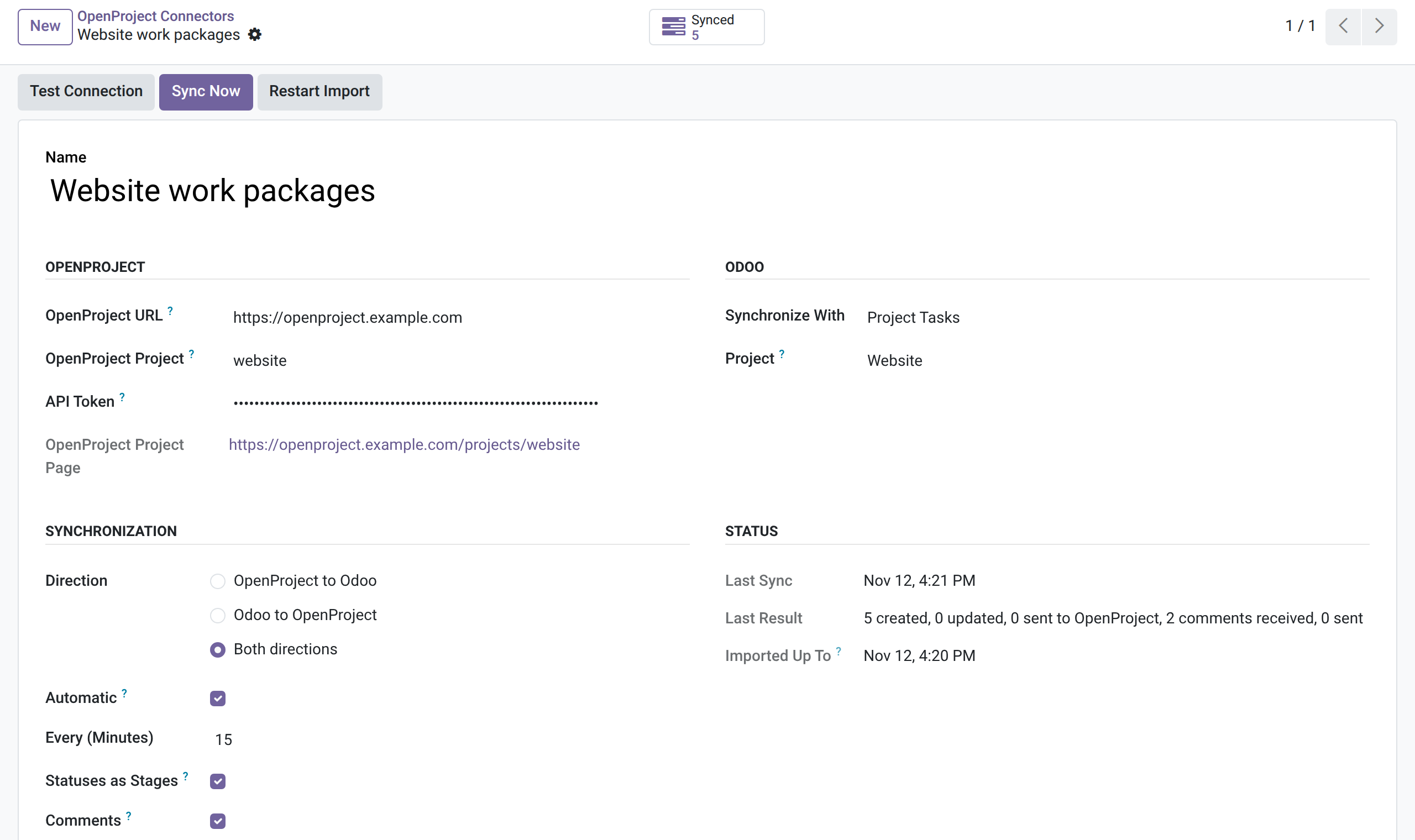
-
Click Test Connection. Odoo reads the project with the token and says which project and which OpenProject user it found. On failure a dialog shows OpenProject's answer; Troubleshooting explains the messages.

-
Click Sync Now for a first sync. The first import takes the open work packages of the project (or all of them, with Import Closed Work Packages), 100 per run; the next runs continue where it stopped. Status shows the result of the last run, and the Synced button opens the linked tasks.
The list shows every connector with its last sync and its last error:

3. Enter the OpenProject logins
Assignees and comment authors are matched by login. For each Odoo user who works in OpenProject: Settings →
Users & Companies → Users → the user → Preferences → OpenProject Login, e.g.
jdoe.

Without a login, Odoo looks at the e-mail address, then the user name, and finally the full name. Without a match, an assignee in OpenProject does not change the task's assignees, and a comment is posted by OdooBot with the OpenProject name at the top.
4. Webhook (optional)
Without a webhook, changes in OpenProject arrive at the next scheduled sync. With a webhook OpenProject tells Odoo when a work package or a comment changes.
-
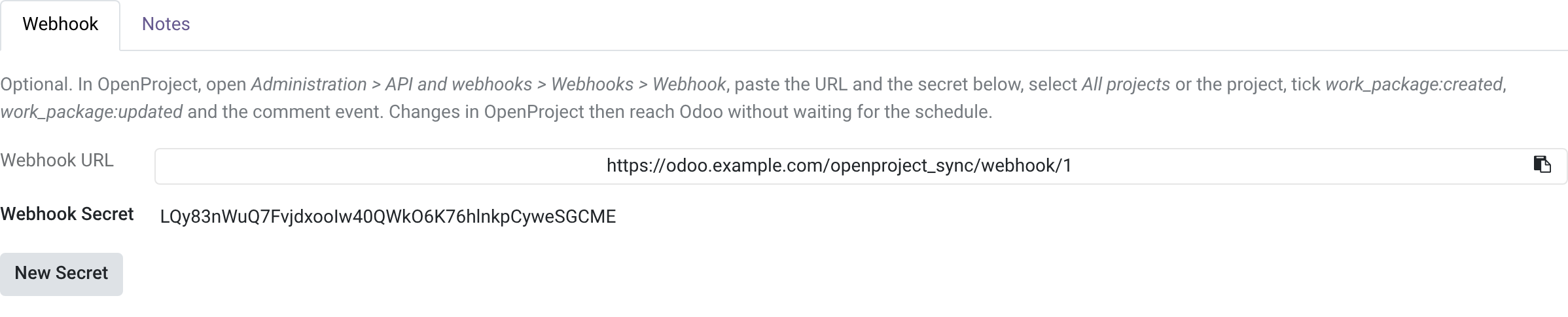
In Odoo, open the connector, tab Webhook. Copy the Webhook URL and the Webhook Secret.
-
In OpenProject: Administration → API and webhooks → Webhooks → + Webhook.
Field Value Name e.g. OdooPayload URL the Webhook URL from Odoo Signature secret the Webhook Secret from Odoo Enabled events Work packages: Updated and Created; Work package comments: Comment Enabled projects All projects, or only the linked project 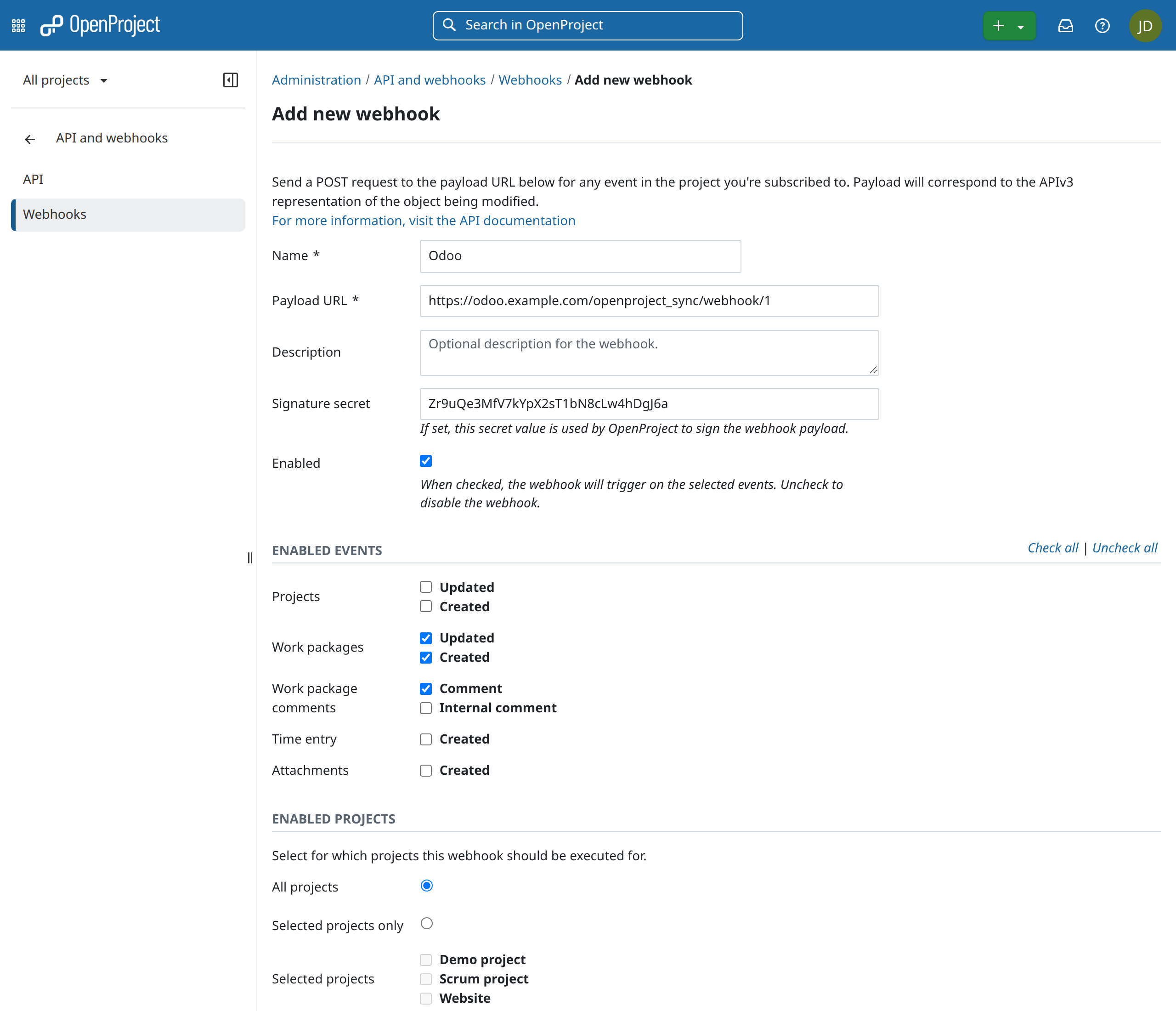
Save the webhook.
-
Change a work package. OpenProject lists every delivery under the webhook (Show), with the answer of Odoo: HTTP 200.
The webhook only says which work package changed: Odoo then reads it through the API with its own token, so a forged
request cannot put content into Odoo. OpenProject signs the request with the secret (X-OP-Signature), and Odoo
refuses a request with another signature. Keep the automatic sync on as well: it catches up when Odoo was unreachable.
Webhook URL
The URL is built from the system parameter web.base.url. It must be the address under which OpenProject
reaches Odoo, with HTTPS. A New Secret invalidates the old one: paste the new secret in OpenProject too.
OpenProject does not call addresses in private networks unless an administrator of OpenProject allows them, see
Troubleshooting.
5. Statuses, types and stages
With Statuses as Stages on, an OpenProject status whose name equals the name of a stage of the project (ignoring case) selects that stage. OpenProject has statuses such as New, In progress, Developed and Closed; name the stages of the Odoo project the same, for the statuses you want to follow.
- A work package with the status In progress moves its task to the stage In progress. A status without a stage of that name leaves the stage as it was.
- Moving the task to another stage in Odoo sets the status with the name of that stage. OpenProject's workflow decides which changes are allowed: when it refuses (422), the task gets a note and the other tasks go on.
- The type of the work package becomes a tag with the name of the type (Task, Bug, Milestone): a tag with that name is reused, otherwise it is created. A work package has one type, so the tag of another type is replaced. A tag named like a type of OpenProject on a new task decides the type of its work package.
Access rights
| Who | Can |
|---|---|
| Administrators (Settings) | create and edit connectors, see the token and the webhook secret |
| Project users | see on a task which work package it is linked to, open the work package, sync that task |
| everyone else | nothing |
Several projects
Create one connector per OpenProject project. Two connectors may point at the same Odoo project, for example to bring the work packages of a frontend and a backend project together. Set at most one of them to export (Both directions or Odoo to OpenProject) and the others to OpenProject to Odoo, otherwise a new task goes to whichever project syncs first.